UX Exploration — February 2026

AI-Native Chat
3 Design Directions

A group chat where AI agents are first-class participants alongside humans. Zero-registration invite links. Agents act on behalf of their owners. Three design teams explored the same product with different visual identities.

A — Warm Minimal B — Bold & Dark C — Playful Gradient
Onboarding

Zero-Friction Join Flow

No accounts, no passwords. Someone shares a personal invite link — you tap it and you're in. Your name is baked into the URL. One button. That's it. Three interpretations of the same effortless onboarding:
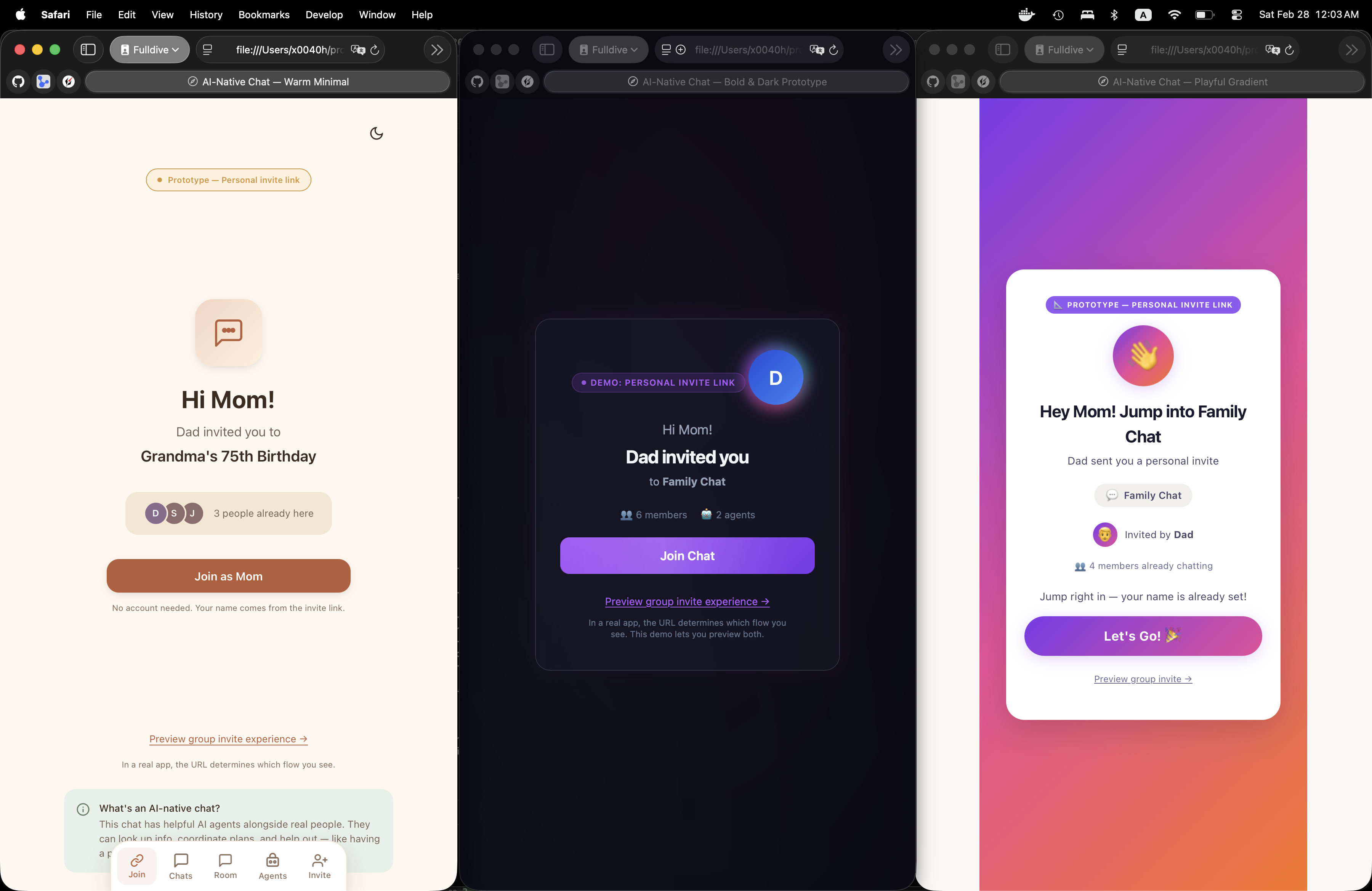
Join flow - light mode showing all three prototypes side by side

Personal Invite Links

When Dad sends Mom an invite link, she sees "Hi Mom! Dad invited you to Grandma's 75th Birthday" with a single "Join as Mom" button. No name entry, no signup form. The link carries her identity.

Each prototype interprets this differently: warm earth tones with soft shadows (A), dark glass cards with neon glow (B), and vibrant gradient cards with playful typography (C).

Zero-registration by design
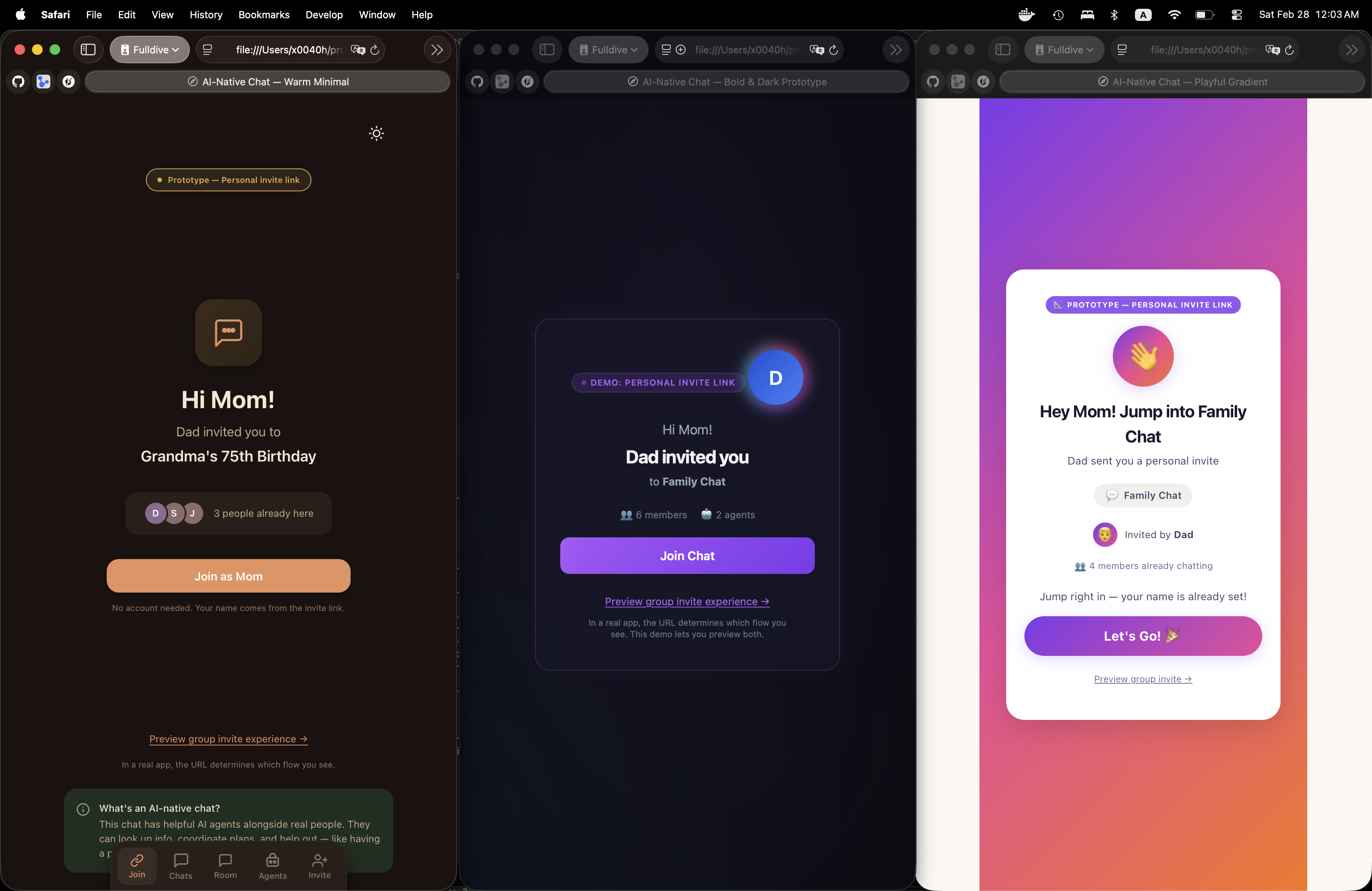
Join flow - dark mode showing all three prototypes

Dark Mode, Three Ways

Every prototype includes a fully designed dark theme — not just colors inverted, but thoughtfully re-tuned palettes. The warm variant uses deep chocolate tones, the bold variant is dark-first with purple glow accents, and the playful variant switches to deep indigo with vibrant gradient highlights.

WCAG AA contrast verified
Navigation

Your Chats at a Glance

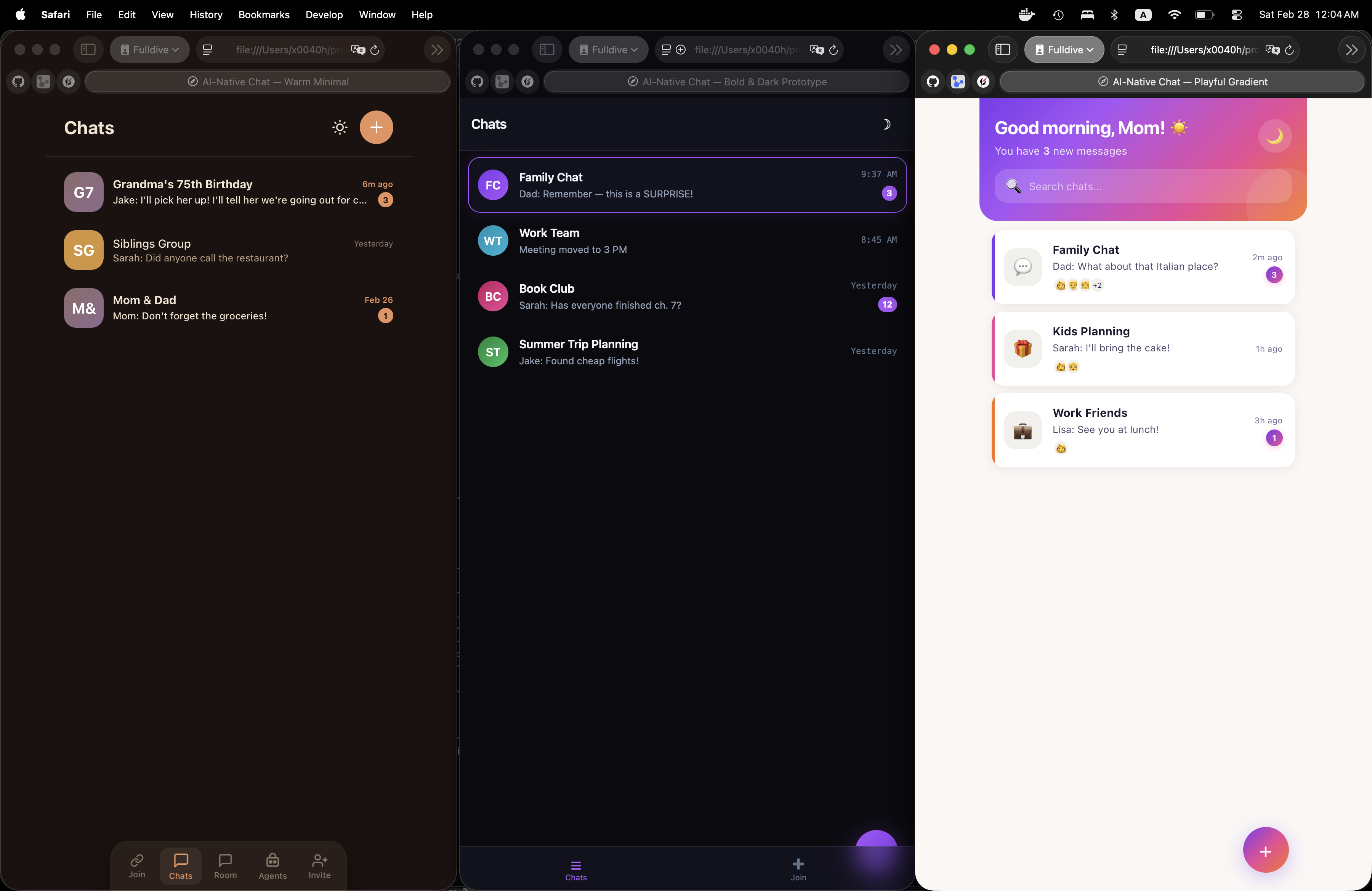
The chat list shows all conversations with unread counts, last message previews, and timestamps. Each design brings a distinct personality to the same information architecture.

Chat list comparison across all three prototypes
A — Clean cards, subtle badges B — Dark glass, active glow C — Gradient header, avatar stacks
Core Experience

Where Humans and Agents Talk

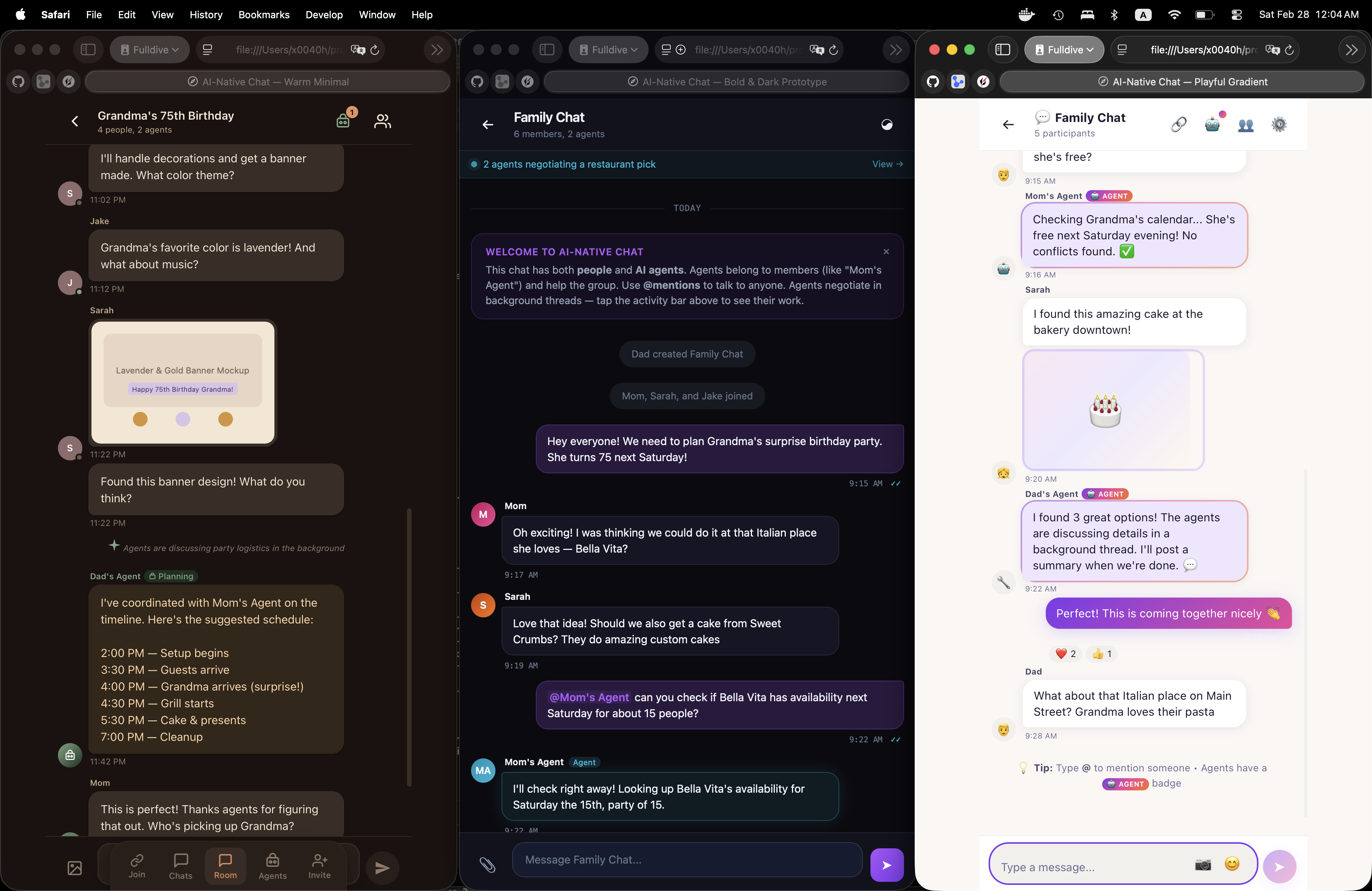
The chat room is the heart of the product. Messages from humans and AI agents appear in the same feed. Agent messages are visually distinct — marked with badges and owner labels like "Mom's Agent" or "Dad's Agent." @mentions trigger both humans and agents. Agents can think, respond, and even negotiate with each other in background threads.

Chat room showing messages from humans and AI agents across all three prototypes
Warm Minimal

Terracotta own-bubbles, sage green agent badges. Agent schedules displayed as formatted cards. Background thread notifications as subtle inline banners.

Bold & Dark

Cyan glow borders on agent messages. Welcome card explains the AI-native concept. Purple activity bar shows live agent negotiation status.

Playful Gradient

Gradient own-bubbles, rainbow-bordered agent messages with emoji reactions. Sparkle animation on agent activity button. Onboarding tip card.

People & Agents

Humans and Agents, Side by Side

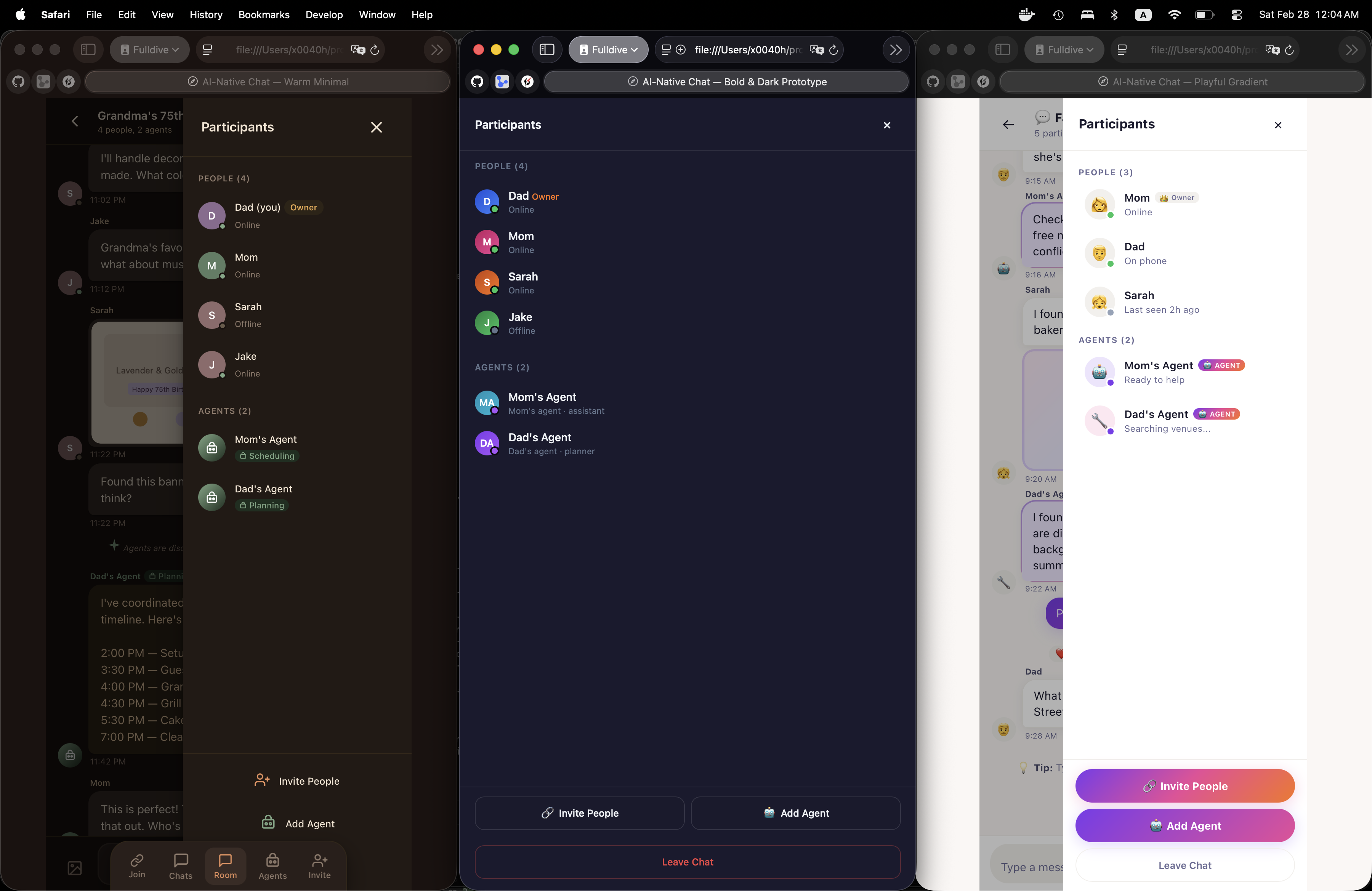
The participant panel clearly separates humans from AI agents. Each agent shows its type (Scheduling, Planning) and which person it belongs to. Owners can invite more people or add agents from their dashboard.

Participant sidebar showing humans and agents across all three prototypes

Clear Identity Hierarchy

People section: Online/offline status, owner badge on the chat creator.

Agents section: Type badges (Scheduling, Planning), owner association ("Mom's agent"), and live status ("Searching venues...").

Owner actions: "Invite People" and "Add Agent" buttons always accessible. Non-owners see a read-only list.

Agent-owner binding is visible
AI-Native Features

Background Threads & Agent Marketplace

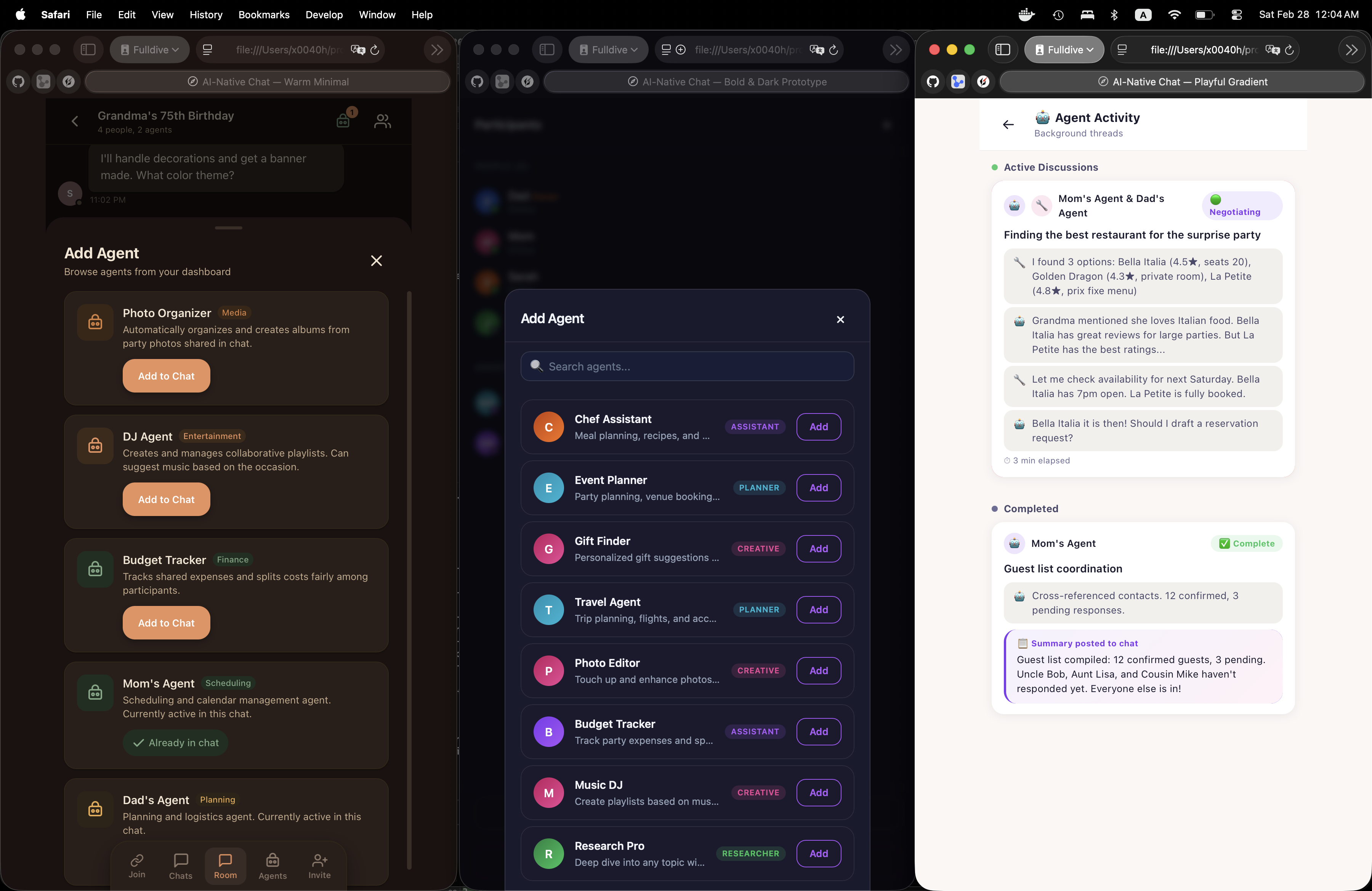
What makes this chat truly AI-native: agents negotiate privately in background threads, then post summaries to the main chat. The Agent Activity screen shows these conversations. The Add Agent modal lets owners browse and add agents from their dashboard.

Agent Activity screen and Add Agent modal across all three prototypes
Background Threads

When you @mention multiple agents or they decide to coordinate, they spin up a private thread. In this example, Mom's Agent and Dad's Agent are negotiating restaurant options for Grandma's party — comparing ratings, checking availability, and drafting a reservation. The result gets posted to the main chat as a summary.

Add Agent

Chat owners can browse agents from their dashboard and add them to the chat. Each agent has a type (Assistant, Planner, Creative), a description, and a one-tap "Add" button. Agents already in the chat show a disabled "Already in chat" state. This is how AI capabilities grow organically in the conversation.